How to Review a Video
A practical guide for stakeholders reviewing cuts: speak in timecode, separate blocking issues from polish, and keep every note tied to the frame it belongs to.
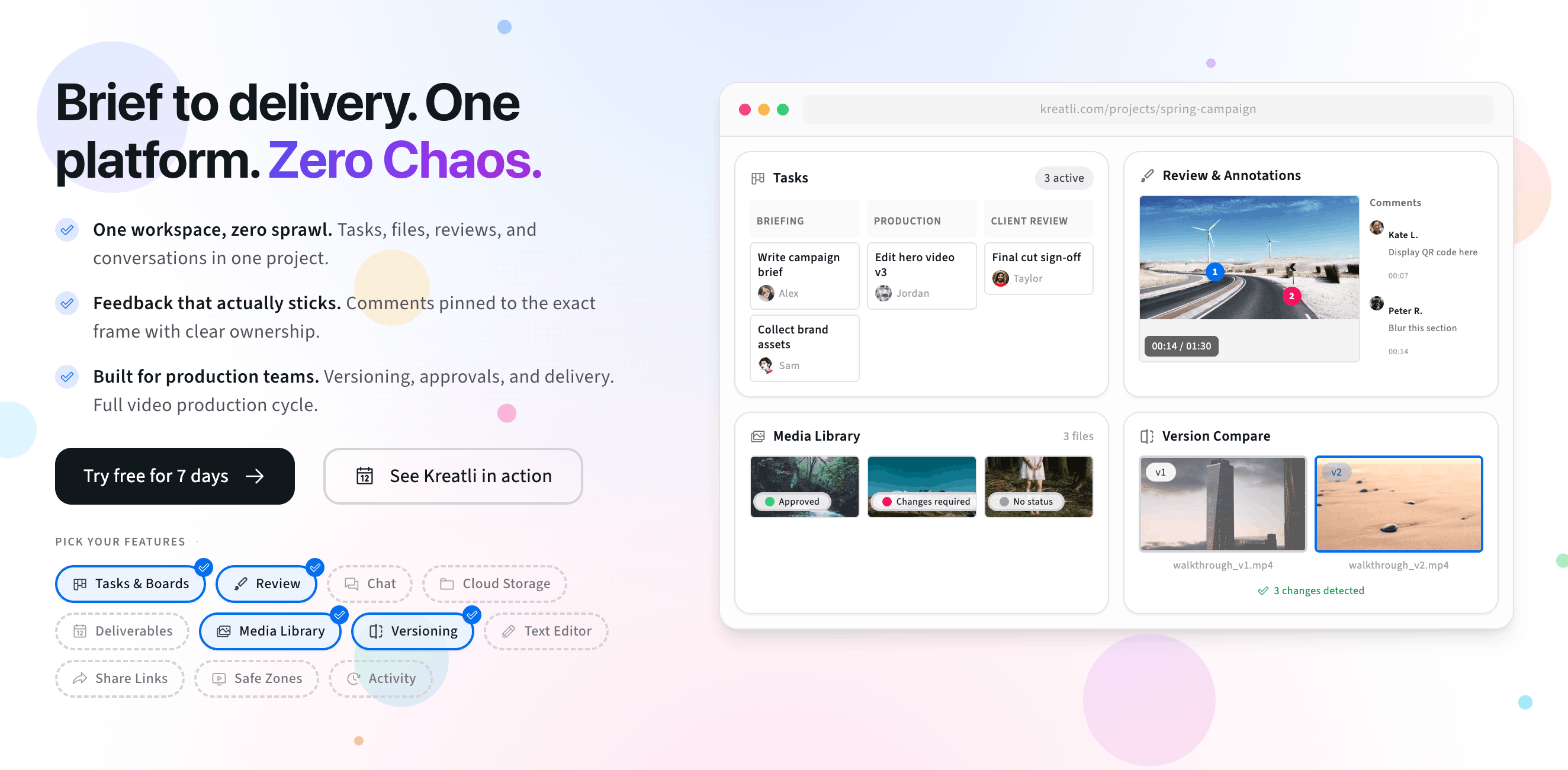
How to review a video is a collaboration skill: your job is to make the next cut obvious. Timestamped notes, clear priorities, and honest separation between “must-fix” and “nice-to-have” keep editors moving instead of reconciling vague feedback.
What a good video review looks like
Strong video review balances creative direction with execution detail. Everyone should agree on pacing, story beats, and brand guardrails—then translate those into concrete changes tied to timecode.
Time-anchored: every note maps to a moment in the timeline.
Prioritized: blocking issues surface before polish passes.
Resolvable: each comment can be checked off when addressed.
Why timestamped feedback beats “see below” notes
“See 0:45” in an email thread still leaves room for error. Timestamped comments inside the player remove ambiguity and let editors jump straight to the issue.
Less back-and-forth: fewer clarification messages in chat.
Faster revisions: editors batch fixes by time ranges.
Cleaner approvals: stakeholders see what is still open at a glance.
For the platform overview, see Review Video.
How to review a video (step-by-step)
Watch once without pausing for gut-check story and pacing.
Take a second pass with timestamped notes for required changes.
Tag severity (blocking vs polish) if your tool supports it—or state it in the comment.
Add visual markup when words alone would be ambiguous.
Share one review link so notes stay consolidated.
Best practices for actionable video notes
Quote what you see: reference dialogue, on-screen text, or shot type.
Propose outcomes: “tighten by 0.5s” beats “feels slow.”
Respect audio: call out levels, music edits, and legal sfx separately from picture notes.
Close the loop: resolve or reply when a fix is verified on the next upload.
Try reviewing a video now
The interactive preview below mirrors uploading a cut and leaving time-anchored feedback. When you are ready, start a 7-day trial or book a demo.
Upload a video or image to get started
Drag and drop a file here, or click the button below
Free tools, guides, and platform features
Below are free tools that pair with video review, plus related guides and platform features to explore next.
Free tools for video review
Try tools that complement frame-accurate feedback, proofing, and collaboration.
Video Reviewer — Review videos online with frame-accurate comments, visual annotations, and approval workflows. Share with clients; recipients do not need a Kreatli account.
Video Feedback Tool — Give frame-accurate feedback on videos with comments, annotations, and markup. Share review links with clients; recipients do not need a Kreatli account.
Video Annotator — Add frame-accurate comments, drawings, and markup to video. Pin feedback to exact timestamps and share with clients; recipients do not need a Kreatli account.
Video Proofing Tool — Proof videos with frame-accurate comments, annotations, and approvals. Share proofing links; recipients do not need a Kreatli account.
More guides and examples
Read more about video feedback, annotation, and approvals.
More resources
Capabilities that support video annotation, review, and secure storage.
Video Annotation — Add frame-accurate annotations, drawings, and markup directly to video frames. Pin comments to exact timestamps and collaborate with precise visual feedback.
Comment on Video — Comment on video with frame-accurate, timestamp-pinned feedback. Threaded discussions tied to exact frames.
Review & Approval — Frame-accurate revisions and approvals for video content. Streamline your feedback workflow.
FAQ: Review a video
What does it mean to review a video properly?
A proper review ties each note to a specific moment in the timeline, states the requested change, and explains intent (story, brand, legal, audio clarity, etc.). The editor should not have to guess which frame you mean.
Should I write one long comment or many short ones?
Prefer many short, timestamped comments—one issue per note—so items can be resolved independently. Long essays are harder to track across versions.
When should I draw on a frame while reviewing?
Use drawing when spatial detail matters: graphics placement, safe areas, faces to blur, or UI overlap. Pair the drawing with text so the goal is explicit.
How do I review new versions without repeating old notes?
Use version-aware review so comments stay attached to the cut they were made on. Resolve completed items, then review the new upload as a fresh pass focused on what changed.
Can clients review without accounts?
Yes, when you share a guest-friendly review link. External stakeholders can watch and comment in one workspace without signing up.
Still have questions?
Reach us at support@kreatli.com and we will help you set up a video review workflow that fits your team.
Ready to review video the clear way?